Assigning Rooms for Group Reservations
Users can select the room features to be excluded for the rooms assigned to group reservations from the Exclude Room Features drop-down list on the Reservation Presets tab on the Group screen.
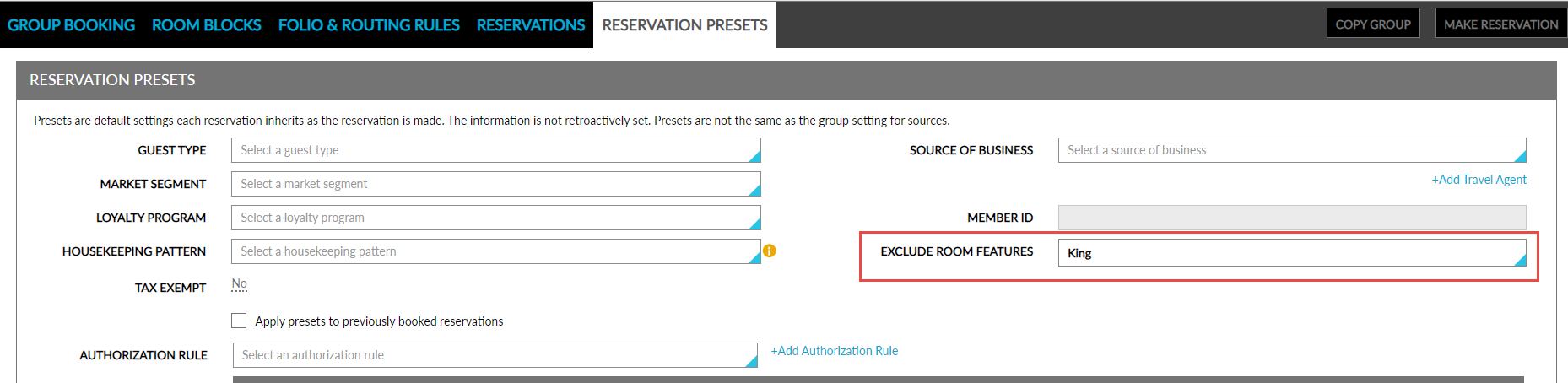
When users choose to Apply Presets for the previously created reservations, the Exclude Room Features selected will be applied to all the existing reservations created for the group. When users navigate to these existing reservations and expand the Other Matching Rooms section, the excluded features will be pre-selected by default and displayed in the Exclude Room Features drop-down.
When users chose not to Apply Presets for existing reservations, the excluded features selected will only be applied to the new reservations created for the group. When users create new reservations, the excluded features will be pre-selected and displayed in the Exclude Room Features drop-down list in the Other Matching Rooms section of the Book a Reservation screen.
When rooms are not assigned to reservations based on the room features selected to be excluded from auto assignment, the message, Room could not be assigned due to the exclusion preference on the reservation, is displayed at the top of the Reservation screen.
When users create reservations for groups from the Staging section (Group ➜ Reservations ➜ Staging ➜ Create Reservations) and when no rooms are available to be assigned based on the excluded features selected for the group, the reservation will not be created, and the following message will be displayed: Room could not be assigned due to the exclusion preferences of this group.